
Some websites disable right-click functionality to prevent users from copying content. Website owners use several methods to protect content and prevent right-clicking.
Frameworks and CMSs offer various plugins/addons for this purpose, while some web hosting and CDNs include features like server-side exclusions and link protection.
On the other hand, content protection tactics can harm the user experience. Although website owners know these restrictions can hurt the user experience, they still use them because even popular websites use duplicate content and still rank highly. People also use content without credit, or even for commercial purposes.
To be clear, copying content from a restricted site without permission likely violates copyright. Always respect digital property rights by following the creator’s rules. Get permission and follow the terms before using any text or content.
Here are simple ways to copy text from restricted websites.
1. Extracting Text From Images
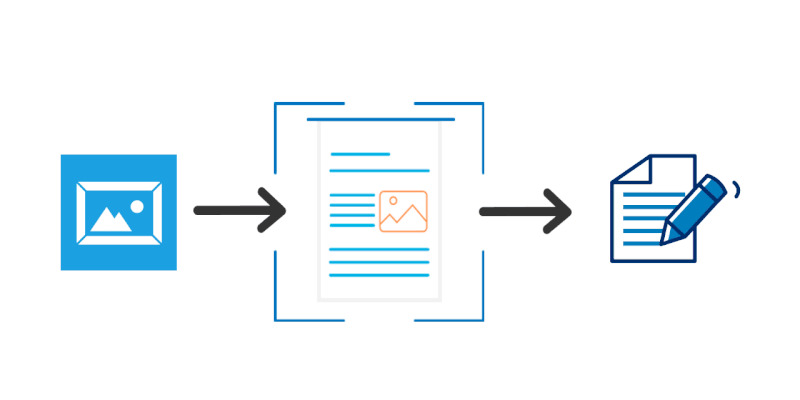
I’m not going to explain OCR here, but optical character recognition lets you convert images into text easily. And I suggest this because it is easy for beginners to use.
Take a screenshot of the text you want to copy from a protected website. After that, use an online optical character recognition tool to turn the image into plain text, a DOC file, or another format. (OnlineOCR offers an easy-to-use OCR with just a few steps).
Most browsers allow you to use online OCR to copy text from restricted websites. You can also extract text from PDFs or images without installing additional apps.
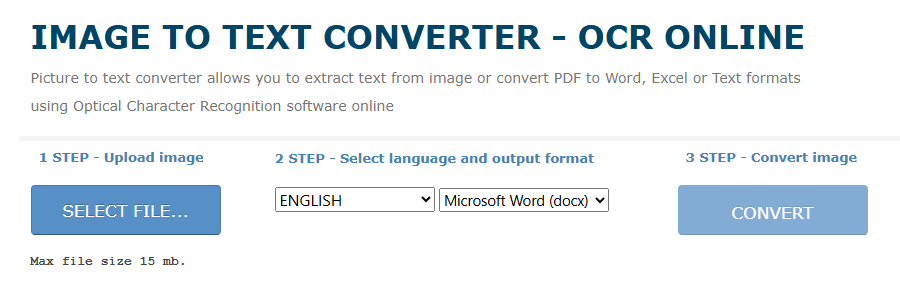
I captured a screenshot of text from a content-protected site. Uploaded the screenshot to the site. You’ll see different languages, so choose the right one. I chose plain text, and it finished in 10 seconds, just as I expected.
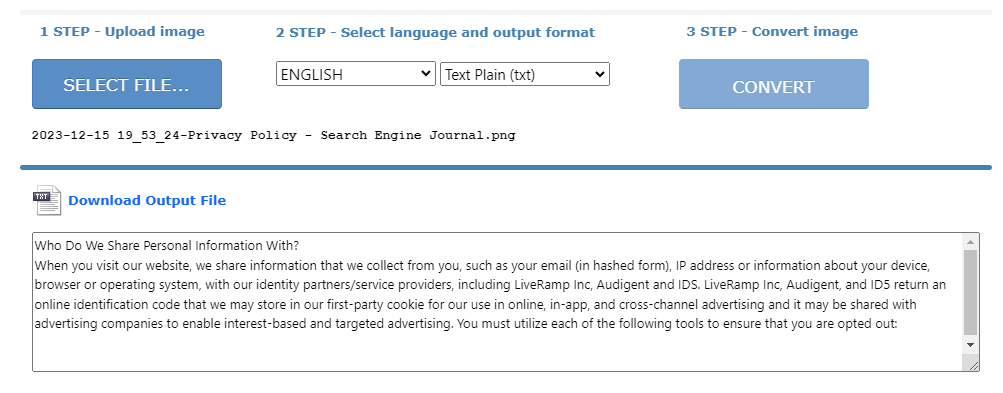
It only takes 4 simple steps: upload, set the language, convert, and copy or download. That’s why I call it a beginner-friendly, fast approach.
Alternatively, search Google or other search engines for “OCR tools.” Many websites offer services that convert images to text using optical character recognition.
2. Using Chrome Extensions
Google Chrome is the most widely used browser, with over 2 billion users, and it offers extensions that let you copy text from protected websites. I’ve tested a few extensions, and most of them work. Allow Copy is a nice extension with over 100,000 users. On restricted websites, you can enable the context menu, even if you can’t right-click.
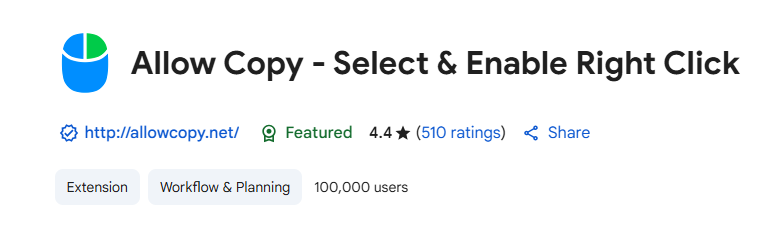
I’m going to test this add-on on a website that doesn’t allow right-clicks. Even I can’t use shortcuts or drag images on this page, so I’ve installed the “Allow Copy” extension and enabled the option “Enable Copy.” It works; you can see it here:

If you don’t like the first one, consider Enable Right-Click, another fine extension that acts separately in each tab. It has received many positive reviews. The Chrome Store offers several extensions that allow users to copy text from protected websites.
3. With Reading Mode in Browsers
Most browsers offer a reading mode, which lets you copy text from secure web pages. The following are browsers that support reading mode.
Google Chrome
In the latest version of Chrome, reading mode is on by default. To use it, just right-click and choose “Open in reading mode.” Chrome’s reading mode lets you change fonts, colors, and other settings. But it doesn’t always work.
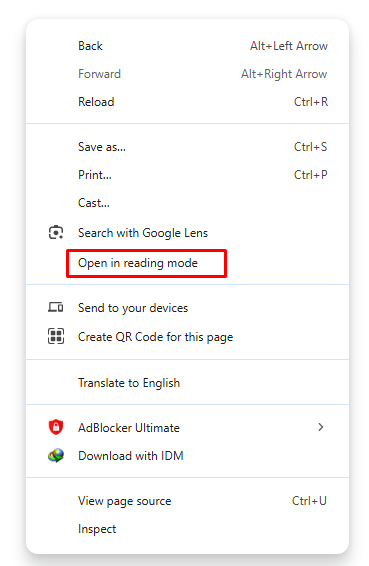
Sometimes things don’t go as planned, especially if a website blocks right-click. If you can still right-click but can’t copy, try switching to Chrome’s reading mode.
Mozilla Firefox
I have used Firefox to copy text from several protected websites; however, I am not comfortable using it as my primary browser. Firefox’s integrated reading mode simplifies navigation of content-protected pages. So, you can open Firefox reading mode by pressing the “F9” key on the keyboard or using the address bar icon.
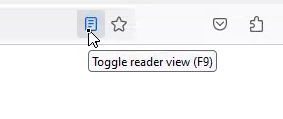
Firefox’s read mode allows you to copy text from content-blocked websites without an extension. But this method may fail if sites use strong text-protection measures.
Microsoft Edge
Edge has improved a lot in recent years. It provides a practical reading mode and lets users copy text from restricted websites, similar to Firefox.
Press the “F9” shortcut on the keyboard to open Microsoft Edge reading mode. A handy feature that doesn’t require extensions.
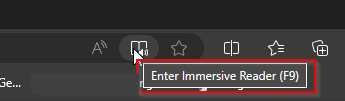
You can access it by clicking the icon in the address bar. This image shows how I open Reading View in Edge when a website doesn’t allow right-clicking.
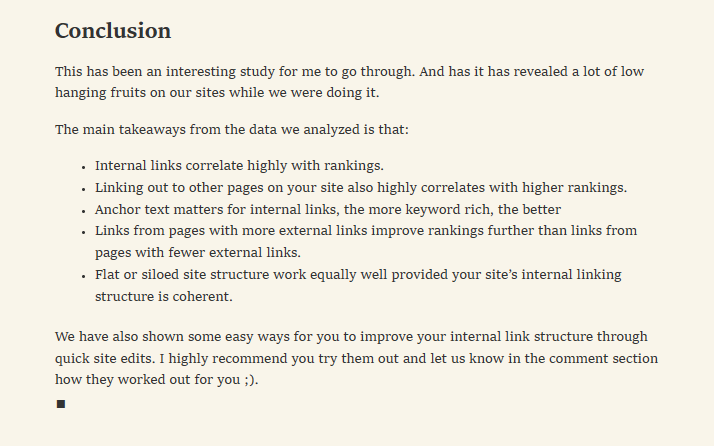
See how simple it is… From what I’ve seen, this method usually works on most websites that block right-click. If not, we can try other solutions.
Opera
Opera has a smaller user base than Chrome. But it is smooth and customizable, which makes it a strong alternative. It’s got many features, and Opera’s “Read Mode” is as good as Firefox and MS Edge. Go to the website where you want to copy text. Look for the reader mode icon in the address bar and click it to adjust the settings.
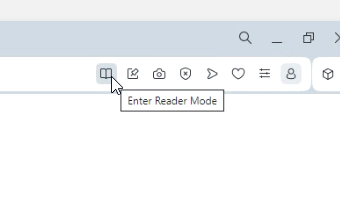
There are too many browsers to list, so I can’t explain how to copy text from blocked web pages for each one. Your browser usually has a reader mode. See the Safari user guide for more on Reader View for Mac users.
4. With the Page Source Code
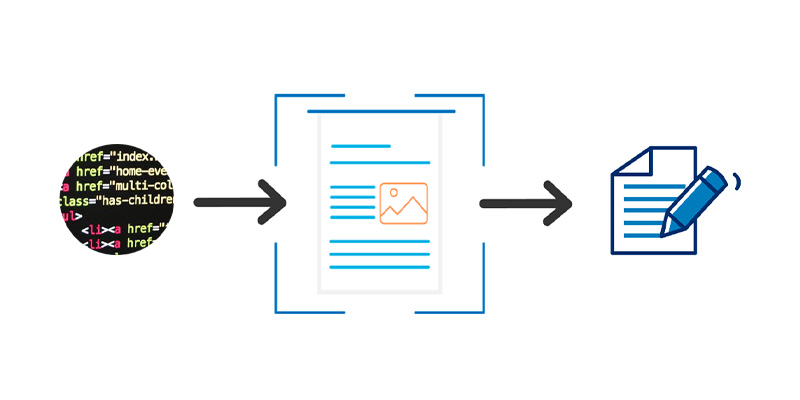
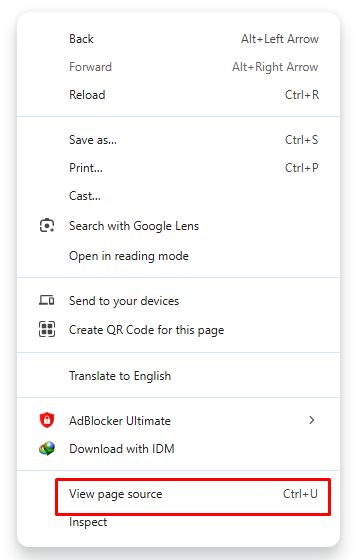
Use this method only if you are familiar with HTML, as it involves technical steps. So, this isn’t a tactic to use often. In many browsers, you can view the source code of a page. If you use Chrome, visit the page where you want to copy the text. To view the page source, right-click on the page and select “View Page Source,” or press Ctrl + U.
You’ll see something like this:
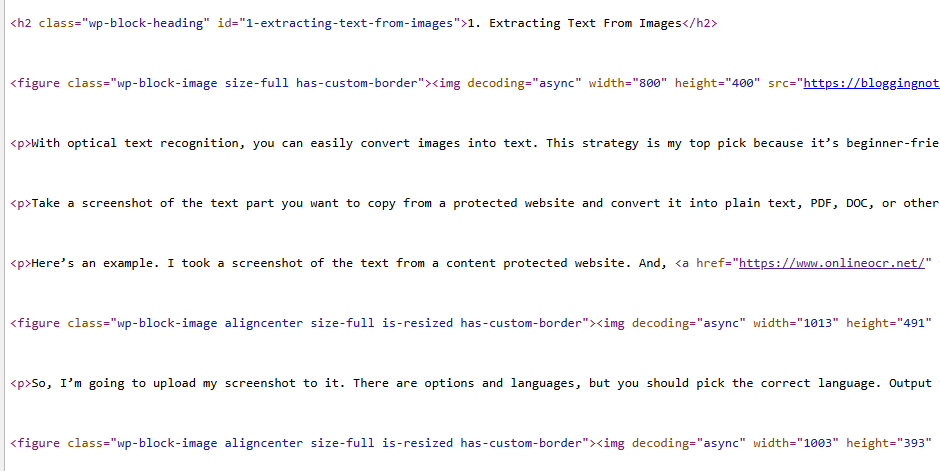
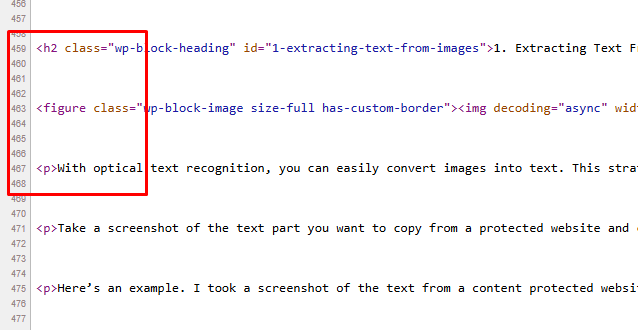
On some websites, you can scroll down to see more content or use the right side of the page to navigate. When you peer at the source code of a page, recognize content with “P” for paragraphs and “H” for headings. See an example here:
Some add-ons can disable source code views; this won’t work if the content utilizes those approaches. See how to open Page Source Code in other browsers:
- Firefox: Open-source web browser. To view the page source, press Ctrl+U or right-click and select “View Source.”
- Edge: The approach is the same as in Microsoft Edge. Select Inspect Element by right-clicking on the page (Ctrl+U also works).
- Opera: Press “Ctrl+U” to open the source code of the selected page. Or click on the right-click menu and choose “Page Source.”
- Safari: Click “Develop” in the menu bar, then select Show Page Source—Web Inspector from the options menu.
- Brave/Vivaldi/Tor: Right-click to view the source or press Ctrl+U.
Using the methods above, you can view the page’s text, scripts, and other elements. If yes, you can copy text from the source even if it’s blocked on the page itself, though this isn’t always ideal; try it only if other methods fail.
5. Using the Printing Feature
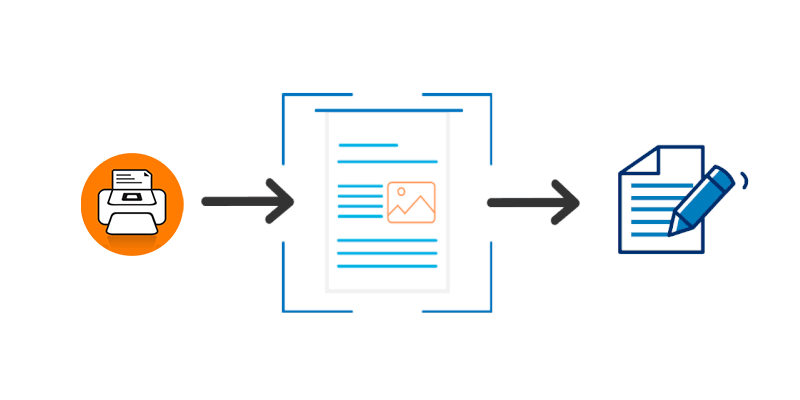
Most browsers have a print feature; otherwise, you can convert a page to PDF. It can help you copy text from secure web pages, but some tools can block the PDF option.
I’ve had good results with Firefox and Edge using this method. Chrome’s Print to PDF feature works well, but some sites don’t support it.
So, what are the steps involved?
- When right-click is enabled, right-click and select Print.
- If right-click doesn’t work, press “Ctrl+P” to open the PDF feature.
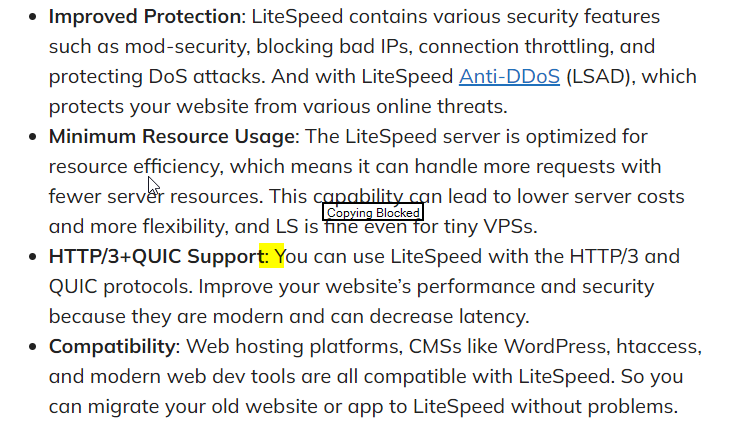
So, I’m going to convert this page to a PDF document using Chrome.

The method lets you download the PDF to your computer or save it as a PDF. I suggest using the earlier techniques to copy specific sections of text.
6. Using the Save Page Feature
Some websites disable right-clicking, preventing you from copying text. To save the page, press Ctrl+S in most browsers. In Chrome, this appears as “Save as”; it saves the entire web page, including images and other core scripts, for offline viewing.
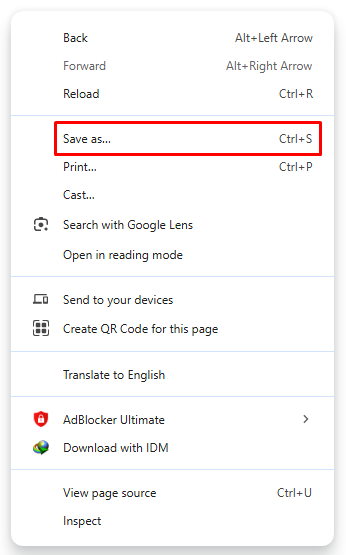
Once complete, open the file in any browser to access the content. Sometimes it’s just an HTML file; media and other resources won’t save, so they may appear broken. If it works, you can easily copy text from locked web pages.
Final Thoughts
I think you have found guidance on copying text from protected websites, with each step different, and these strategies are valuable for legitimate purposes. Other methods likely exist, but most of the ones above are easy to use.
You can use them without much effort, even as a beginner. It’s easy to unlock, select, and copy content on any website.
Websites lock their content for a reason. If you are tempted to copy and paste, focus on creating original content. Do not use or modify someone else’s work without proper acknowledgments because creators must receive true value for their work.
More: Getting Back Hacked TikTok Accounts | TTFB Measurement Tools