
FlyingPress is a premium WordPress speed optimization plugin developed by Gijo Varghese, an expert in this field. Many plugins don’t actually speed up websites; they add features to justify the cost. It is user-friendly and offers features that simplify setup, making it easier to get started even if you’re a beginner.
Note: This review is based on version 5.6.0. See what’s new in the FP changelog. It’s Redis this time. They launched a WordPress hosting service, FlyingHost, which now offers FlyingPress for free.
Most cache plugins are designed to mislead page metrics by skipping page elements, but for actual users, the website is very slow.
But this plugin boosts your site’s speed for both users and performance metrics. It is an all-in-one WordPress optimization plugin that provides page and object (Redis) caching, page and image optimization, and real-time Core Web Vitals.
It is not just about caching; it offers many useful optimization features that help speed up your site. I’ve relied on it for almost five years, and nothing else has proved better.
FlyingPress’s Positive Aspects
Here, I break down the FlyingPress plugin based on my experience and other users’ comments, highlighting its positives and potential drawbacks. Let’s get into it.
Simple User Interface
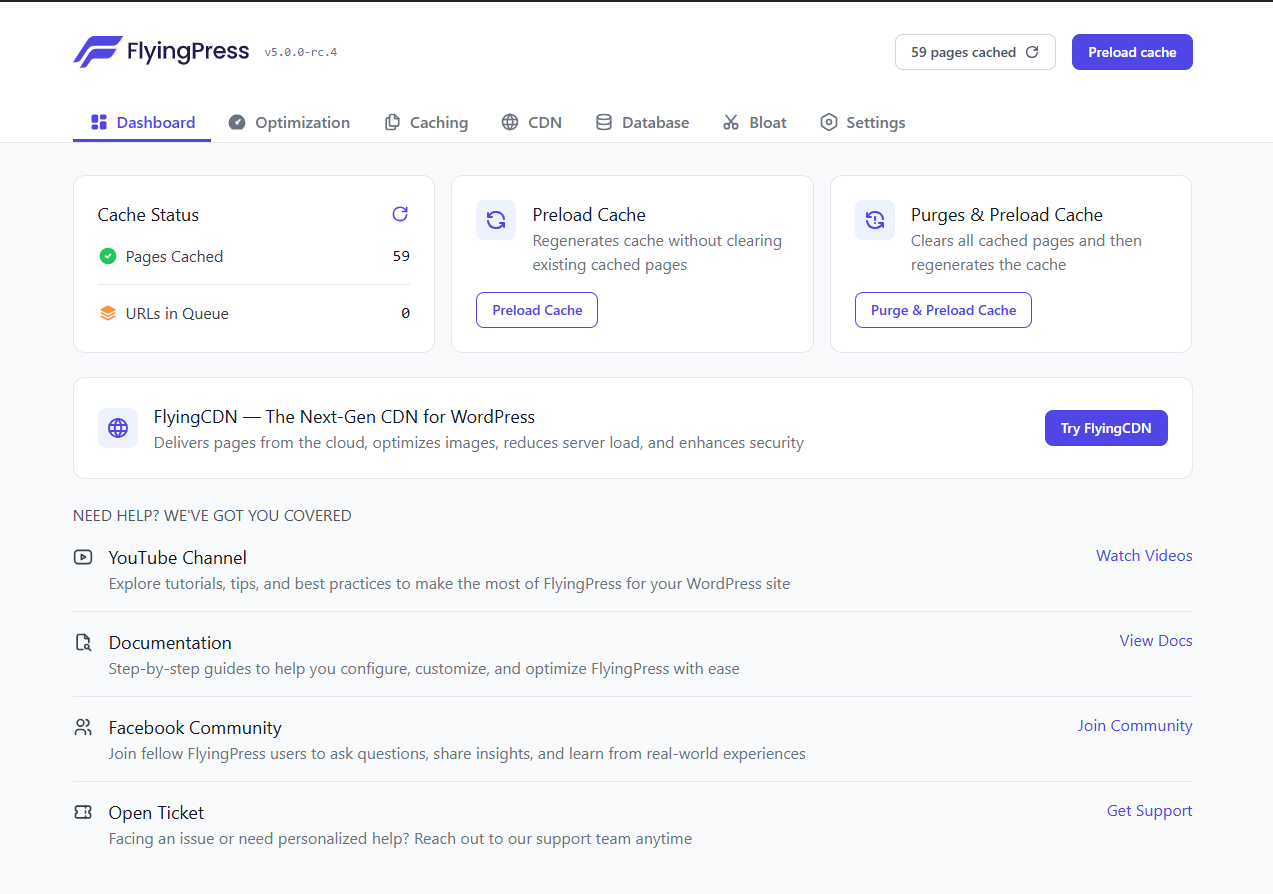
It is a suitable cache plugin if you prefer a simple UI with minimal clutter, whether you’re a novice or a pro. A good user interface makes a product more valuable.
Cache plugins such as W3 Total Cache, Swift Performance, and LiteSpeed Cache often have user interfaces that are difficult to navigate, especially W3 Total Cache. They make it easy for non-technical users to make mistakes (even for devs). However, FlyingPress is super easy to use and can really boost your website’s speed without a ton of tweaks.
Sure, plugins like WP Rocket and Fastest Cache have user-friendly interfaces, but their features aren’t impressive (outdated).
This one simplifies speed optimization for both new and experienced users with a user-friendly interface, and you can clear and preload caches and remove unused CSS with just a few clicks. I have not experienced any issues with themes or plugins.
Core Web Vitals Tracking
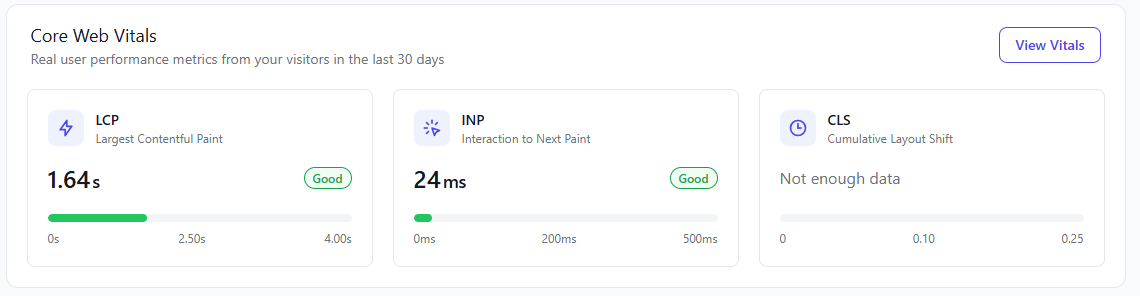
This is an entirely new feature, but I’ve never seen it in a cache plugin before. When enabled, FlyingPress automatically loads a JavaScript file on every page of the website.
It runs for all visitors, including logged-in users, but not on admin pages, and analyzes performance metrics based on Core Web Vitals data collected from real users.
After setup, the JS collects data on Largest Contentful Paint, Interaction to Next Paint, Cumulative Layout Shift, and TTFB. Unlike PageSpeed Insights, which displays a 28-day average, FP provides up-to-date data. What I’m seeing is pretty cool.
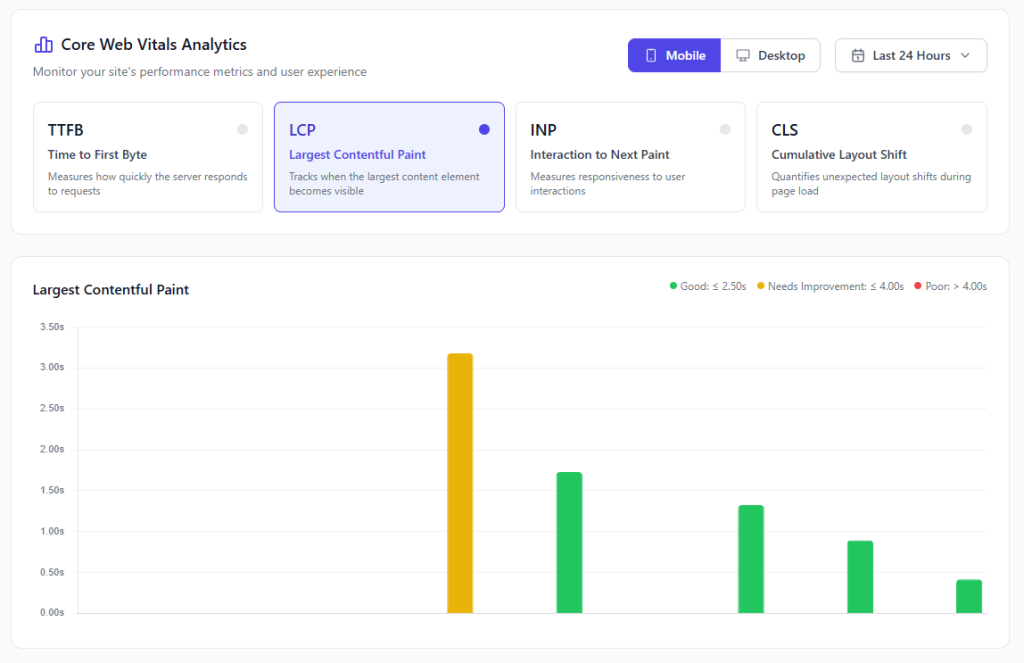
You can find more info on FlyingPress’ dashboard under the Vitals tab. You can pick metrics separately, such as mobile or desktop. You can select a time range, such as the last hour, the previous 24 hours, 7 days, or 30 days, and identify where issues are at both the page and country levels. It’s a cool feature you won’t find anywhere else.
Image Optimization
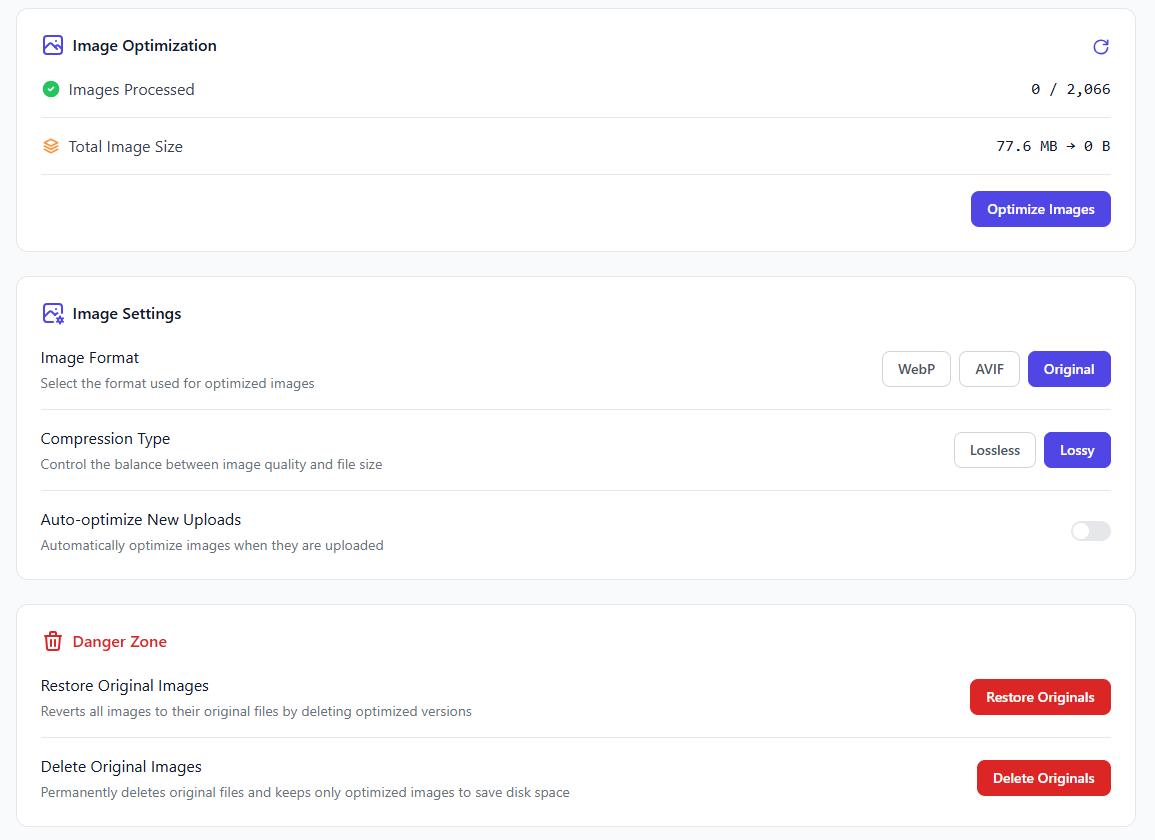
It now offers image optimization within the plugin. You can convert images to AVIF or WebP or retain the original format. You can choose between lossless and lossy compression and set new uploads to optimize automatically. The good thing is that all processing happens on their servers, so it doesn’t use your hosting resources.
You can restore all images to the original files by deleting the optimized versions. Or permanently delete the originals and keep only optimized images to save storage. New updates now group some image and iframe optimizations into a single section.
Media files and images are important for website owners, but they can slow website load times. Iframes are HTML frames that load a different HTML page within a layout. You commonly find them on websites, such as embedded YouTube videos.
Cache plugins typically don’t optimize images; however, FP offers valuable image-optimization features, and FlyingCDN makes them even easier to use.
- Lazy-load images and iframes: A common feature in cache plugins, but the good news is that FP lets you exclude above-the-fold images from lazy loading, so you can keep the top of the page above the fold.
- Properly Sized Images: Automatically add missing width and height attributes to images to minimize layout shifts. Adapt your images to fit on the page.
- Local Gravatar: It downloads and caches Gravatar images on your web server to improve your site’s performance and reduce external requests.
- Replace YouTube iframes: Handy if you use YouTube videos; this feature can be used before users play videos, showing thumbnails instead of iframe embeds.
CSS, JavaScript And Font Optimization
In v.5, CSS and JavaScript optimization are merged. Website optimization is often difficult due to factors like unused CSS and JavaScript.
Most cache plugins don’t optimize CSS/JS correctly, which can cause websites to crash. But FP settings are safe to use and won’t crash your website with aggressive features.
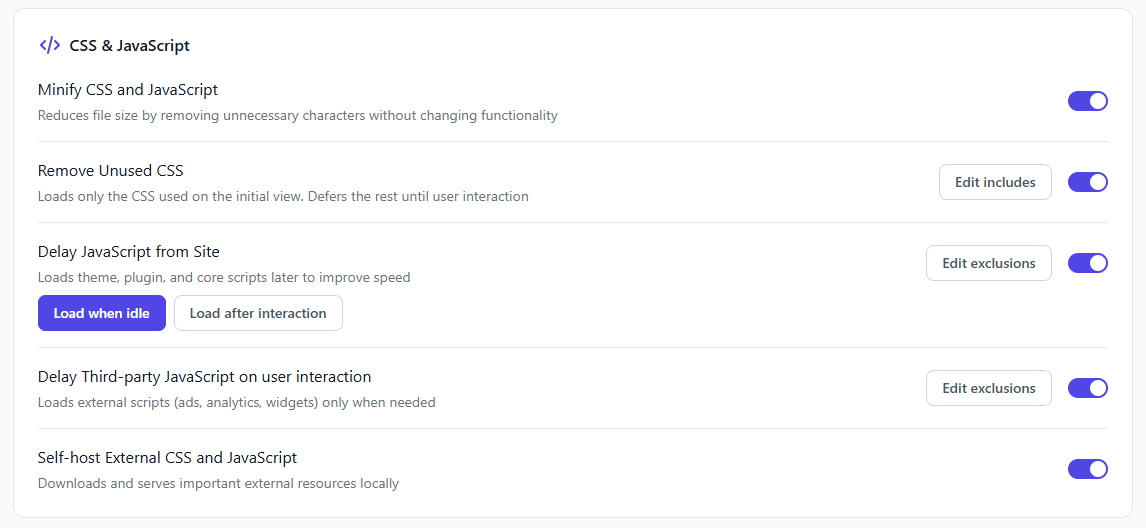
Minify CSS and JavaScript: Remove whitespace and comments, and reduce property values to minimize the CSS file. Thanks to this safe CSS refinement feature, your site won’t crash. Optimizes JavaScript by removing whitespace and reducing file size.
Unused CSS: WordPress often includes unused CSS that needs optimization. For this issue, most plugin refinements cause the website to crash. But FlyingPress lets you safely optimize unused CSS. Loading unused CSS only when a user interacts with the site is the safest solution after the main CSS has been rendered, especially for dynamic websites. To keep certain CSS, enter the URL or path of any CSS files you want to keep.
Lazy-render elements: This strategy lets you skip rendering elements on a page until the user interacts with them. It can speed up the site and improve page load time.

WP elements, such as comments and footer parts, don’t need to load quickly. With the latest update, users can pick elements from the Gutenberg editor.
JavaScript Optimization: Almost every WordPress theme and plugin uses JavaScript, and it’s a common part of websites, but it often slows them down.
Third-party scripts like ads, banners, and analytics can be difficult to optimize, so that’s why FP has ingenious JavaScript optimization features SUCH AS:
- Delay JavaScript from Site: Loads themes, plugins, and core scripts later for faster loading, and you can choose to load them when the site is idle or after interaction. You can also exclude scripts that shouldn’t be delayed.
- Delay Third-party JavaScript: This feature allows you to reduce the impact of third-party codes delaying external JavaScript, such as ad networks, analytics, or other third-party scripts. Scripts load only when needed, and third-party code can slow down your website and confuse visitors.
- Self-host External CSS and JavaScript: Downloads and serves critical external resources locally.
Depending on the website, delaying all JavaScript may not be advisable. Users can use it for most sites because there’s another way to exclude scripts from the delay. You need to know a few things about optimization and which types of JS shouldn’t be delayed.
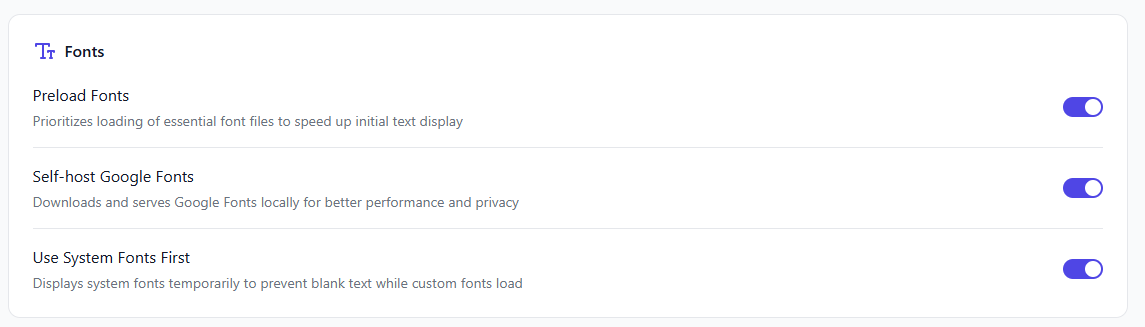
FlyingPress lets users optimize Google Fonts and web-hosted fonts by combining and self-hosting them, and it can also preload self-hosted fonts with high priority.
It also supports fallback fonts, ensuring text remains visible while web fonts load. It also handles everything for you, including self-hosting and combining.
Sure, fonts are simple, but most aren’t well optimized and can seriously slow down sites, especially if you use Google, Bunny, or Adobe Fonts. Google selects fonts based on the user agent and recommends self-hosting for better control. To speed up your website, host one or two Google Fonts on your server instead of using external sources.
Use System Fonts First: It lets you temporarily use system fonts to prevent blank text while custom fonts load.
Bloat Removal
Truth is, bloated themes or page builders often lock your layouts into a single design because most WordPress themes, plugins, and core features include unnecessary elements. Bloated websites cause inconsistent performance.
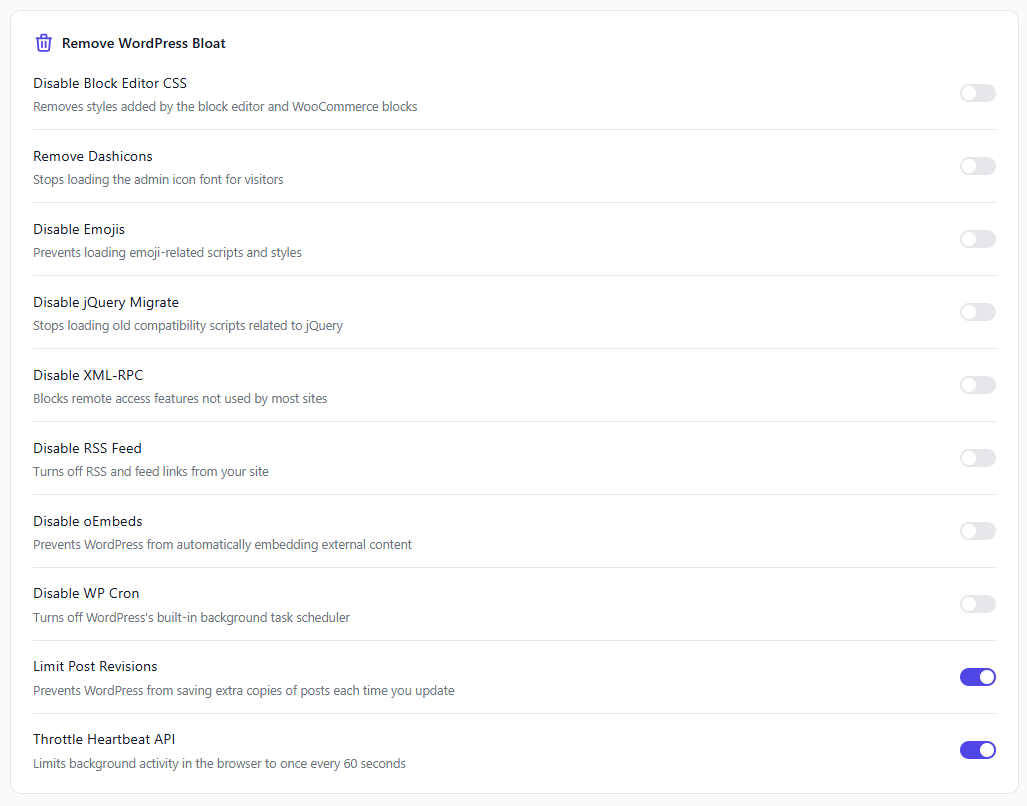
This plugin doesn’t include asset optimization features, unlike Perfmatters. Still, it offers a few basic bloat-removal features that work for most websites.
- Disable XML-RPC: There’s no reason to keep it active, as it’s no longer needed. It also leads to security holes.
- Disable RSS feeds: Users can track their favorite sites via RSS, but this feature is outdated and no longer relevant nowadays.
- Disable Emojis: Emojis in WordPress core aren’t necessary, and It’s not a big deal, but you can remove them by ticking the box.
- Control Post Revisions: WordPress often creates duplicate posts, and this lets you control it.
- Throttle Heartbeat API: This lets you limit background activity to once every 60 seconds, which can help if your hosting shows high CPU usage.
You can deactivate features like oEmbeds, Block Editor CSS, jQuery Migrate, Dashicons, and WP Cron, but you don’t need to disable all of them. These features are valuable if your website runs on smaller servers. If your website feels cluttered with Divi or Elementor, switch to Gutenberg for a cleaner look. You don’t have to use every feature.
Page And Object Cache
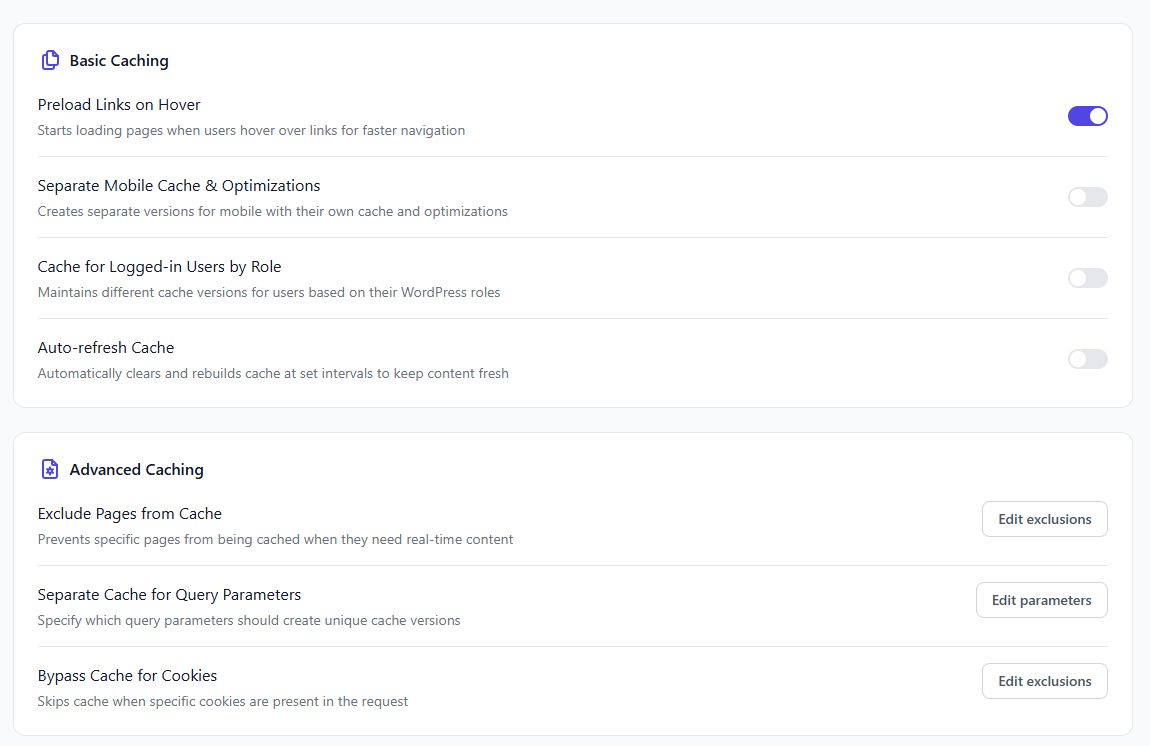
FP is a cache plugin; its main function is caching, which is enabled by default. You can’t turn it off with a checkbox/click, but you can either disable the plugin or manually ignore the pages. It has some nice caching features like:
- Object Cache: In its 5.6.0 release, Redis finally reaches FP. Redis stores database query results in memory to speed up page loads.
- Cache for Logged-in Users: Not recommended for most websites, as it generates cache pages for logged-in users.
- Auto-refresh: Clears and rebuilds the cache automatically at set intervals to keep content up to date. However, Auto-preloading consumes significant resources on large or dynamic websites.
- Mobile Cache: It creates a separate mobile cache version, which is usually unnecessary for most websites.
- Purge Entire Cache: You can clear all cached pages, including FlyingCDN and optimizations; performance will slow until the caches rebuild.
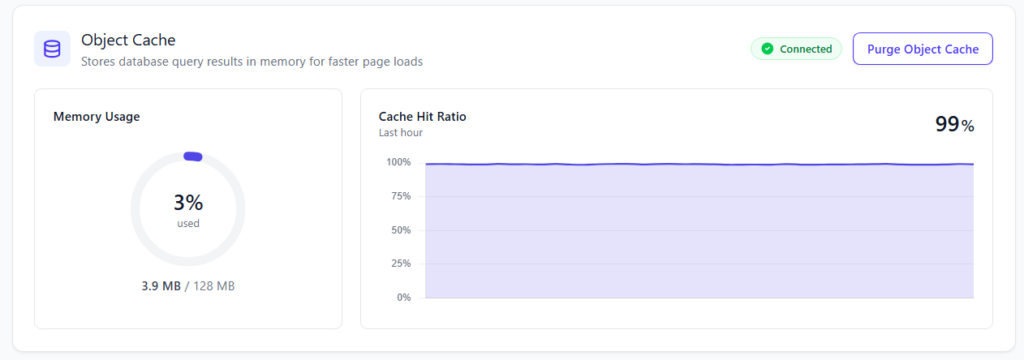
FlyingPress caches and preloads faster than others. You’ll see results in a few seconds, but it would help to have an option to turn off caching. Some users prefer to use it without caching because it offers robust enhancement features.
Enterprise CDN
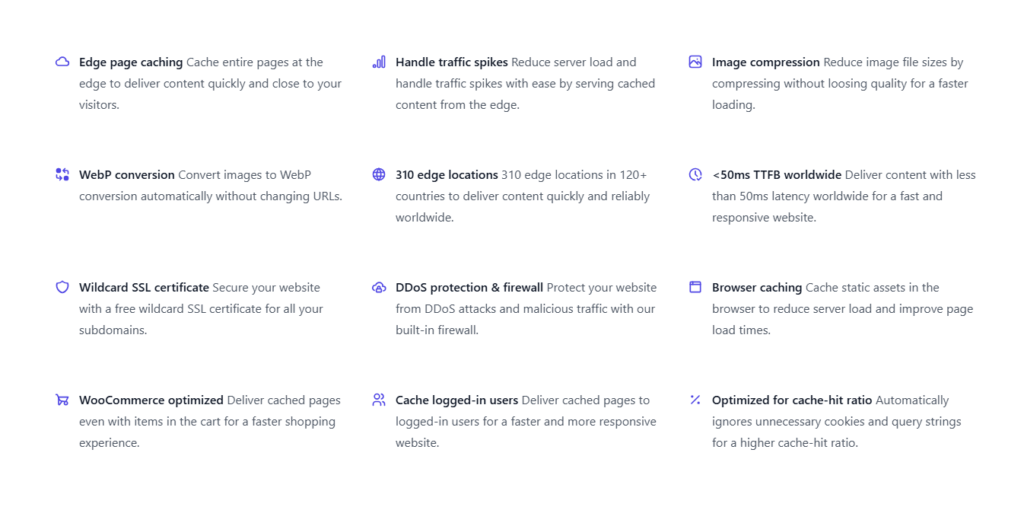
Flying-Press includes a WordPress CDN service called FlyingCDN. Previously, it used BunnyCDN; now it’s Cloudflare Enterprise. I’ve written an article about FlyingCDN if you’d like to learn more.
I like this update because Cloudflare offers enhanced protection, stability, and network features that others don’t. And FlyingCDN has plenty of features, like:
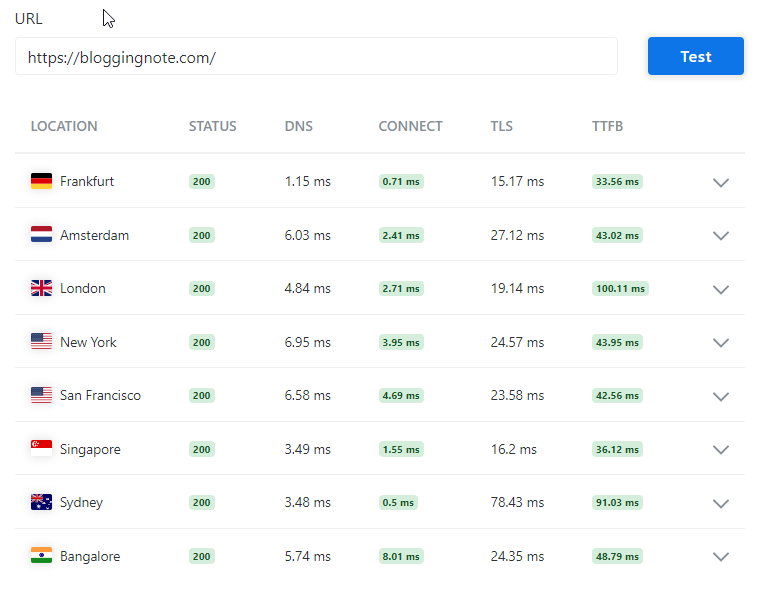
- Full-Page Caching: One of this CDN’s impressive features, it delivers low TTFB by caching entire pages, so they load quickly from Cloudflare’s 300+ edge locations. Web hosts like Rocket.net and BigScoots use Cloudflare’s full-page caching.
- Image Optimization: Cloudflare reduces image file sizes by compressing and resizing them without quality loss (it converts images to WebP).
- Optimized for WooCommerce: We shouldn’t normally cache e-commerce pages, but this feature lets users access cached versions of pages, including shopping carts, for faster navigation.
- Security Features: Cloudflare is robust for site security, and FCDN offers DDoS protection, wildcard SSL, WAF, and bot management.
- Easy Integration: Updating your DNS records makes integration simple.
- Free Trial: They offer a 7-day free trial without requiring a credit card.
FlyingCDN pricing is based on data transfer volume (bandwidth). Each 100 GB costs $10 per month. This is similar to pay-as-you-go, but each site incurs a minimum charge of $10/M (per site, regardless of usage).
Speed Up To Real Humans
Speed for real users matters, since most optimization strategies today focus on search engines or page speed. Some methods simply bypass page metrics by skipping page elements. When real users visit your site, everything loads slowly. Focusing on speed tests instead of real users is like writing for search engines rather than people.
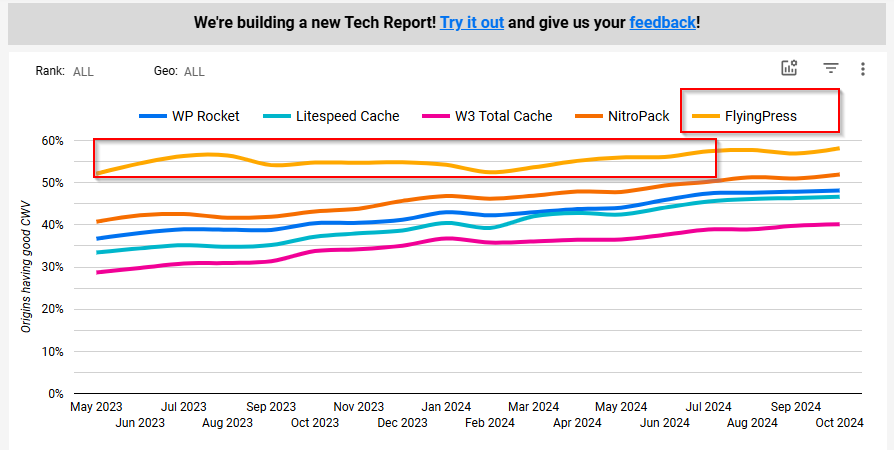
It optimizes web pages for both humans and metrics; for instance, you can test page metrics such as PSI, GTMetrix, and Pingdom, which simulate real users rather than bypassing page elements.
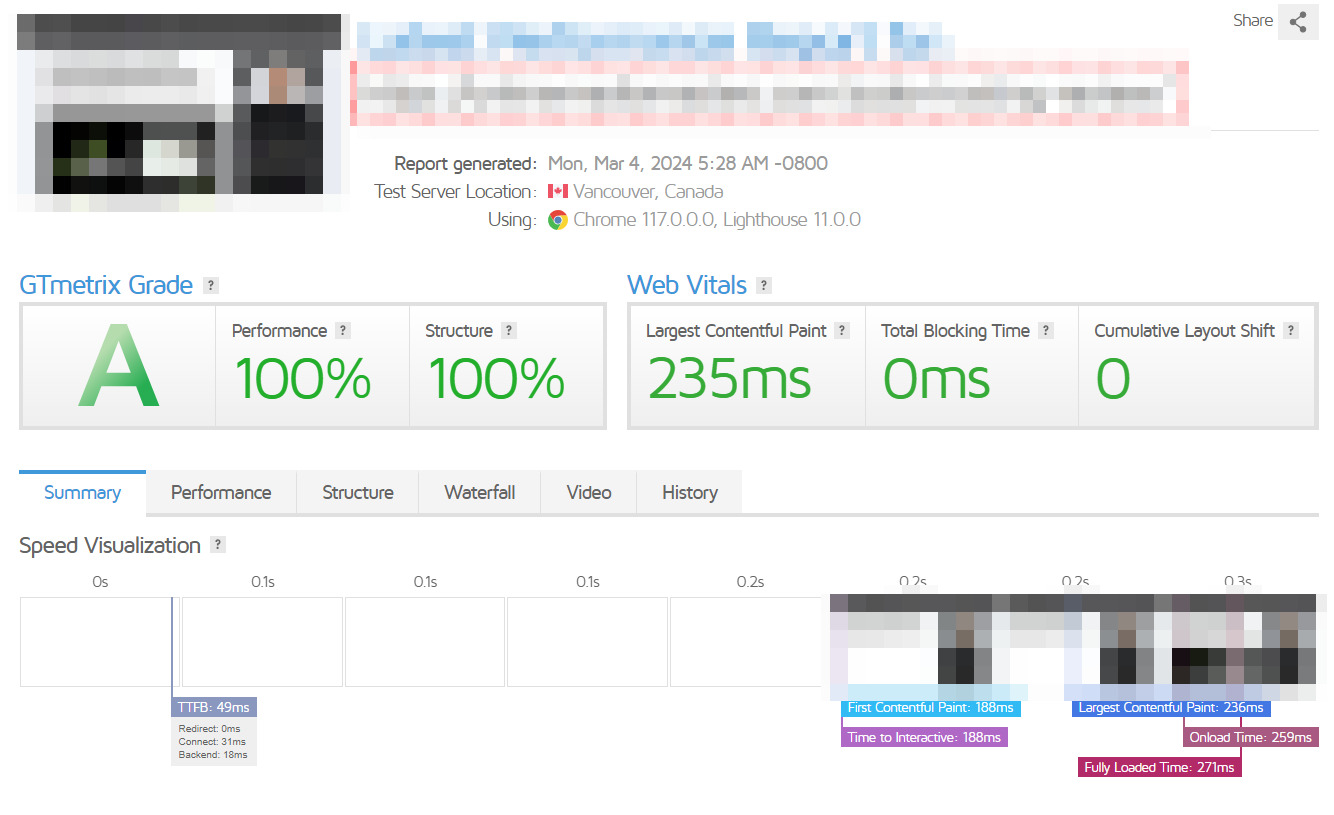
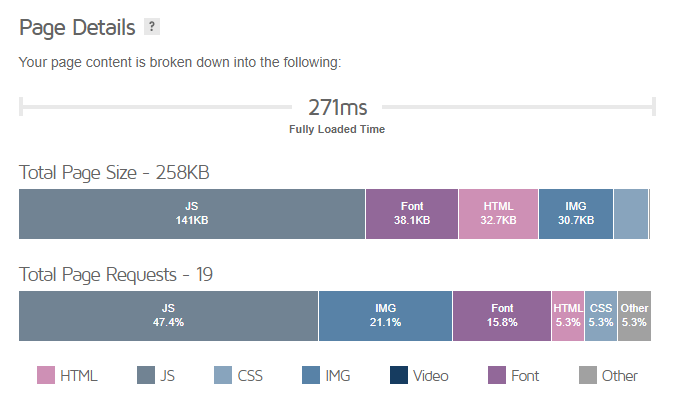
Optimizing for users means delivering the ideal user experience, but for page speed metrics, the goal is to load fewer requests first. Even with high scores, that doesn’t mean your site is fast for actual users. Look up some ranked websites and check their speed rankings. And measure your website’s TTFB using these tools.
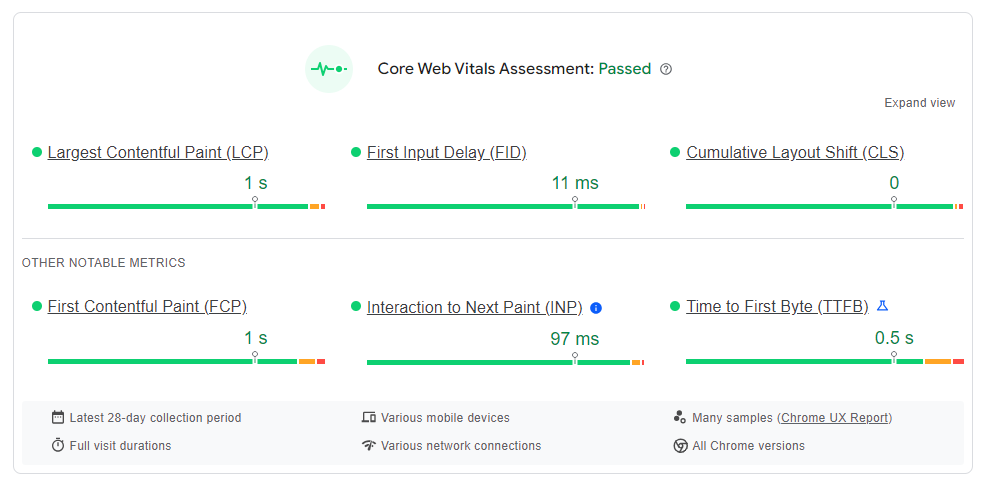
This doesn’t mean page speed metrics aren’t essential. There are points for metrics like TTFB, content paint, first input delay, and cumulative layout shift.
You Can Try It For Free

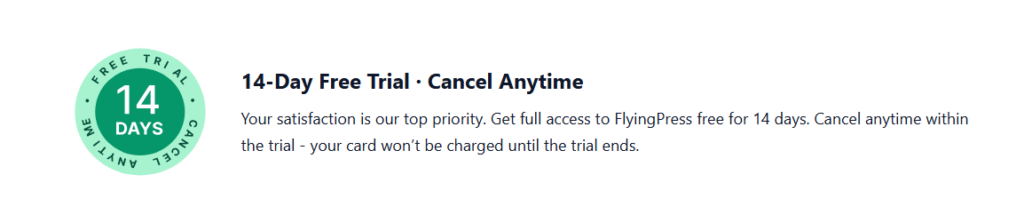
Here’s the most critical part of the FlyingPress review: FlyingPress’ pricing strategy changed. They don’t offer renewals right now; each plan has a flat rate. But you can try all features free for 14 days, and you won’t be billed until then.
Pricing:
- Starter: A website costs $59 per year
- Pro: $99 for three websites
- Business: $199 for 25 sites
- Unlimited: Unlimited websites for $249/year.
It is less expensive than WP Rocket or similar plugins, and it offers unlimited plans. But it still lacks lifetime deals; yes, I know that a lifetime deal isn’t feasible.
FlyingPress’s Negative Aspects
I’ve been using it for over 5 years now. Anything I don’t like? Honestly, not much. I haven’t had any trouble so far. But here are a couple of concerns:
- It caches all your pages by default. To stop some pages from being cached, you must manually exclude them (you can’t disable caching with a single click).
- Documentation isn’t very detailed. It’s enough for most people. It’s not a big deal because it’s simple and has minimal settings (not complicated). But I think some of its features should be explained in more detail.
I don’t see many cons with FlyingPress, but it’s up to you; nothing’s perfect. These are minor things to me. It is a solid solution for most WordPress websites and works with WordPress cloud hosting control panels and other web hosting providers.
Final Thoughts
In this FlyingPress review, I outlined the plugin’s benefits and potential drawbacks. From my experience, this is the best speed optimization plugin for WordPress users.
Yes, the LiteSpeed plugin is an option for those seeking a free plugin, but its weak point is the lack of cache preloading. Also, your server needs to be LS.
Whatever your skill level, from beginner to pro, you can speed up your website with FP. The new image optimization feature makes the plugin a complete optimization tool.
It includes real features that speed up your site’s load time for real users. I recommend using Cloudflare APO, FlyingCDN, or FlyingHost with FP to improve your website’s TTFB by caching the full page. You can use the free Cloudflare plan with FP for full-page caching. FlyingCDN and Rocket.net also use Cloudflare at the enterprise level.
Read More: Copy Text From Protected Sites